Essential Cybersecurity Habits for Everyday Users start with a handful of daily practices that cut risk dramatically. In 2026, threats run faster and criminals use automation, but small consistent actions, strong passwords, MFA, updates, cautious links, and backups, reduce the odds of identity theft, account takeover, and data loss. This guide gives clear, practical steps everyday people can use right now, with concrete examples and honest trade-offs so readers can adopt habits that actually stick.
Key Takeaways
- Essential cybersecurity habits for everyday users drastically reduce the risk of identity theft and data loss in an era of automated attacks.
- Use strong, unique passwords for every account and manage them effectively with a password manager to save time and enhance security.
- Enable multi-factor authentication (MFA) on all critical accounts, preferring authenticator apps or hardware keys over SMS for stronger protection.
- Always pause to verify unexpected or urgent requests for credentials or payments to avoid falling victim to phishing and social engineering scams.
- Keep all devices, software, networks, and backups up to date by enabling automatic updates and maintaining secure offline backups to recover quickly from attacks.
Why Daily Cybersecurity Habits Matter More Than Ever
Daily cybersecurity habits matter because attacks have scaled and automated tools let criminals probe millions of accounts per hour. Simple facts first: regular habits reduce compromise probability by a large margin. For example, accounts with both strong passwords and MFA see far fewer unauthorized logins in breach analyses. That change is immediate, switching to habit-based defenses lowers exposure within days, not months.
Context and a vivid moment: a remote worker in 2025 opened a single fraudulent invoice and lost access to an email tied to payroll. The loss then cascaded: vendor accounts, tax forms, and a banking session. That chain began with one habit that never formed, verifying senders. The lesson is clear: consistent micro-actions prevent macro-losses.
Practical warning: habits fail when they’re inconvenient. Adopting a password manager or enabling automatic updates removes friction and keeps habits functioning even when people are busy. The next sections show exact, low-friction steps to follow.
Use Strong, Unique Passwords For Every Account
Fact: Reusing passwords multiplies risk, if one site is breached, every reused account becomes vulnerable. The core habit: each important account (email, bank, work) must have a distinct, long password.
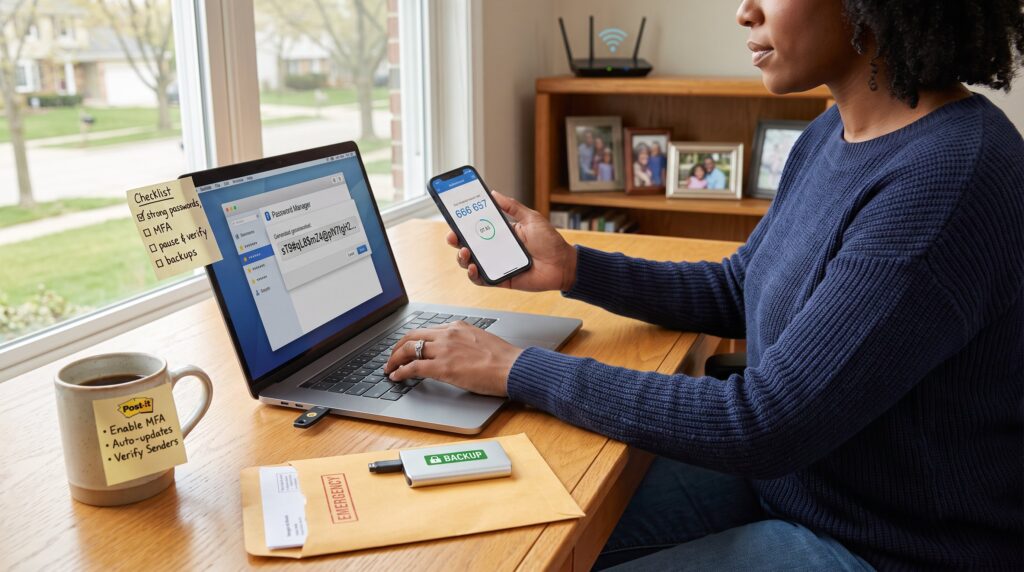
Concrete advice: choose passphrases of four random words (for example: ‘purple-mango-ladder-echo’), or let a password manager create a 16+ character random string. A person who switched to a manager reported saving 15 minutes per day previously spent guessing or resetting passwords.
Trade-offs and real-world detail: memorizing many long strings is unrealistic. A password manager removes that burden and stores credentials behind one strong master passphrase and preferably MFA. If a user fears a single point of failure, they can combine an offline encrypted backup of the manager with a cloud copy.
Related resources and next step: readers who want a quick checklist on common password pitfalls can pair this habit with guidance in TurboGeek’s practical hub on finding guides, which helps pick software and tools with good security defaults: practical guides.
How To Choose And Manage Passwords Effectively
Answer first: use long passphrases and a password manager: avoid personal data. Extra detail: a passphrase of four random words typically resists offline guessing better than a short complex password. Managers generate unique credentials per site and detect reused passwords.
Actionable steps:
- Create a single strong master passphrase (20+ characters) and store it in a secure location.
- Configure the manager to generate 16+ character passwords for high-risk sites (banks, email).
- Enable the manager’s breach-monitoring alerts and rotate any breached passwords immediately.
Honest failure mode: some users store the master passphrase in email or a note app, this defeats the whole purpose. A safer routine is to combine memorization of a unique phrase with a physical copy in a locked place for emergency recovery.
Practical example: when a freelance designer lost a password manager login, she recovered access using a sealed recovery code stored at home. That contingency saved two days of downtime and prevented losing client contracts.
Turn On Multi‑Factor Authentication (MFA) Everywhere Possible
Core insight: MFA stops most automated and opportunistic account takeovers even when passwords leak. Users should treat MFA as a required layer for email, banking, social, and work accounts.
Which MFA to prefer: authenticator apps and hardware security keys provide stronger protection than SMS codes. Authenticator apps generate time-based one-time codes: security keys (FIDO2) use cryptographic challenges and resist phishing.
Real-world trade-off: security keys can be lost. Mitigate by registering two keys or keeping a printed recovery method in a secure place. For people uncomfortable with hardware, an authenticator app is a solid middle ground.
Related reading: for broader context on organizational priorities and how habits map to business controls, TurboGeek’s piece on improving business defenses shows the same MFA-first logic scaled to teams: improving tips.
Spot And Avoid Phishing And Social Engineering Attacks
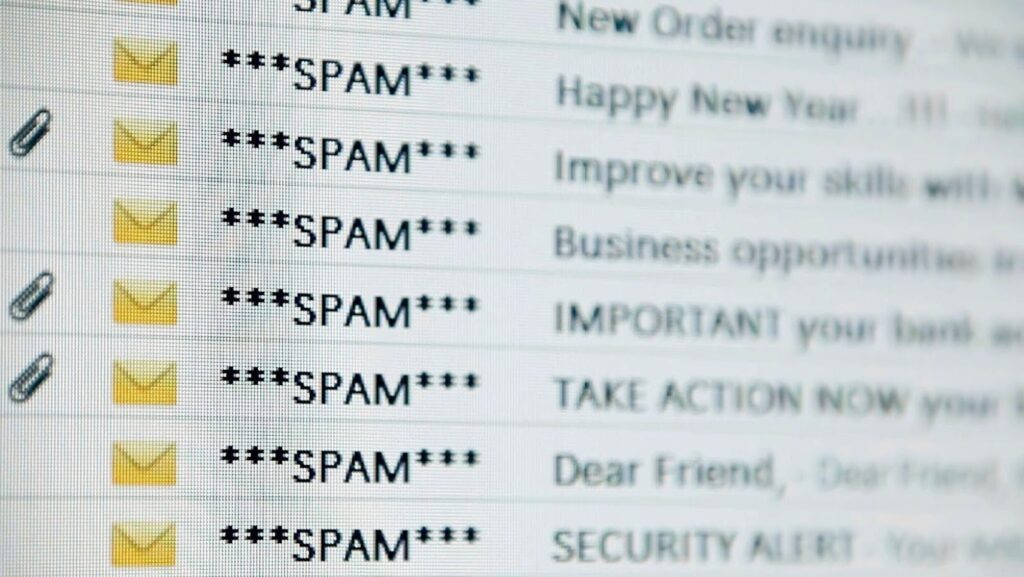
Clear fact: phishing remains the top method attackers use to steal credentials and deliver malware. The single best habit is to pause and verify any unexpected request that asks for credentials, money, or personal data.
Practical cues to watch for: small typos in sender addresses, urgent language demanding action, attachments with odd file types, and links that don’t match the sender’s company domain. A quick verification step, calling a known company number or logging into the service directly, takes under two minutes and prevents most scams.
Vulnerable moment anecdote: a retiree once replied to an email asking for tax documents and later discovered spoofed addresses mimicking a real charity. The repair cost weeks of identity recovery and a frozen donation account. That incident is why the pause-and-verify habit matters.
Contextual resource: for readers who want a deeper history of how social attacks evolved and why vigilance matters, TurboGeek’s review of cybersecurity evolution explains why attackers prefer human-targeting methods: digital frontier.
A Quick Phishing Checklist You Can Use Right Now
Answer first: before clicking or replying, run this four-step checklist. If any item is true, treat the message as suspicious.
Checklist:
- Is the message unexpected or urgent? (Yes = suspicious.)
- Does the sender address look slightly off? (e.g., [email protected])
- Does it ask for passwords, codes, or payments? (Never share.)
- Are grammar and formatting unusually poor?
How to act: do not click links. Instead, open a browser, type the company’s known address, and sign in from there. For attachments, save and scan with updated antivirus software or open them on a disposable device.
Practical tip: teams and families can rehearse SIM-plausible scams. Practicing a phone call verification once a month helped one small nonprofit avoid a $9,000 invoice fraud attempt.
Keep Devices, Software, Networks, And Backups Up To Date
Primary fact: unpatched software and weak backups are where attacks cause the most damage. Habit first: enable automatic updates on operating systems, apps, and home routers when possible.
Specific actions:
- Turn on OS and app auto-updates on phones and laptops.
- Update router firmware quarterly and change default admin passwords.
- Back up data to two locations: an encrypted cloud service and an external drive stored offline. Rotate the external backup monthly.
Concrete numbers: after a ransomware surge in late 2024, organizations that had tested offline backups recovered systems in under 48 hours: those without took weeks and paid higher costs. On the personal side, a household that kept weekly image backups avoided losing ten years of family photos after a laptop drive failure.
Tool note and external verification: follow a simple pre-update checklist to avoid upgrade surprises, Microsoft and support writers recommend pre-checks for major OS upgrades: an accessible checklist helps prevent common failures during upgrades: upgrade checklist.
Contextual anchor: for readers building a broader tech reading list and toolset, TurboGeek offers a practical hub with curated reviews and how-to resources that pair well with these habits: site overview.