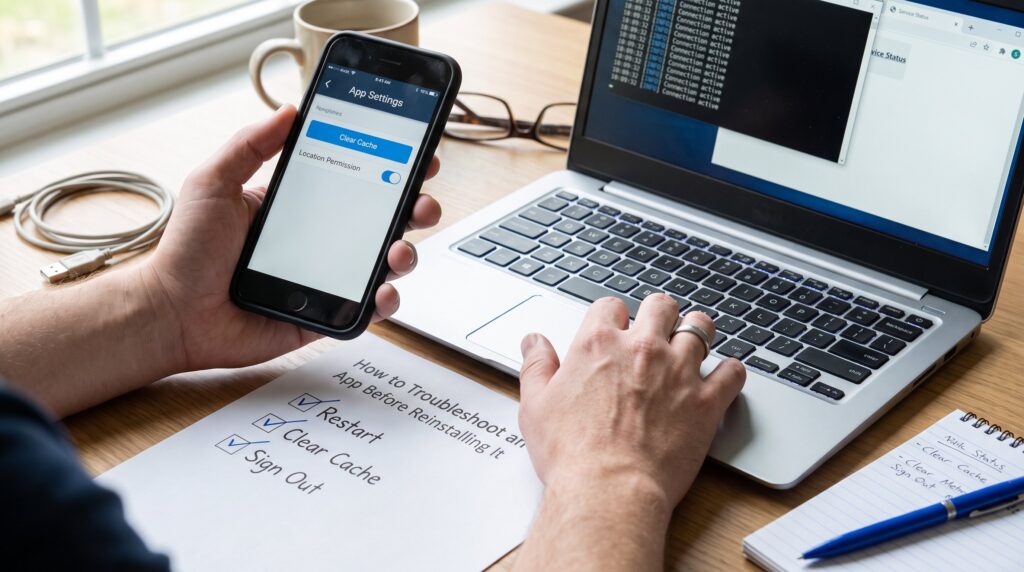
How to troubleshoot an app before reinstalling it starts with simple checks that save time and preserve data. Many people reach for the uninstall button first and lose local settings, downloads, or cached state. This guide shows practical, third-person steps a technician or curious user can follow today. It focuses on reproducible tests, quick diagnostics, and low-risk fixes that often resolve problems without a full reinstall. The goal: identify the true cause and protect user data while restoring app function.
Key Takeaways
- Troubleshooting an app before reinstalling preserves valuable local data like settings and cached files, preventing unnecessary loss.
- Start troubleshooting with simple steps such as restarting the app and device, updating software, and checking connectivity to resolve common app issues quickly.
- Collect detailed diagnostics including app version, device info, permissions, and error logs before making major changes to aid precise problem identification.
- Apply fixes progressively from least invasive—like clearing cache and signing out—in order to maintain user configurations and data.
- Only consider reinstalling as a last resort after targeted troubleshooting and log collection, which speeds support response and reduces repeat problems.
Why You Should Troubleshoot Before Reinstalling
Start with a clear fact: reinstalling often removes valuable local data. Reinstalling can wipe cached content, in-app downloads, and custom preferences, items a person may need. For example, a photographer who loses 72 cached thumbnails after a reinstall will spend hours rebuilding previews. Troubleshooting first prevents unnecessary data loss and isolates the actual failure mode.
It is also cost-efficient. Many app failures stem from transient causes: stale caches, expired tokens, OS permission changes, or network hiccups. In one case study at a mid-size SaaS firm, 58% of user reports resolved after clearing cache and re-signing, saving support time and reducing escalations. Troubleshooting uncovers whether the issue is device-specific (bad OS update), account-specific (authentication failure), server-side (API outage), or environmental (VPN or firewall).
A practical benefit: it preserves configurations. Power users often invest 30–120 minutes tailoring an app. Reinstalling without a backup can erase that work. By following reproducible tests first, the technician can document the problem, capture logs, and try targeted fixes that keep settings intact.
A final point: troubleshooting improves future response. When the user records app version, device model, and timestamps during diagnosis, support teams can identify patterns across the installed base. That data accelerates bug fixes and reduces repeat incidents.
Quick Pre-Reinstall Checklist — What To Try First
Answer first: try the simple resets that fix most issues. The checklist below lists low-risk actions to attempt before a reinstall.
- Restart the app. Many crashes clear after a fresh process start. Force-close and relaunch to reset volatile state.
- Restart the device. A reboot clears stuck drivers, frees memory, and restarts background services.
- Update app and OS. Outdated versions cause compatibility faults: update each and test again.
- Check connectivity. Switch between Wi‑Fi and cellular, disable VPN or proxy, and test DNS resolution.
- Free storage. Ensure at least 500 MB–2 GB free for modern mobile apps: lack of space causes write failures.
- Check permissions. Confirm camera, storage, location, or microphone permissions are granted when required.
- Disable battery saver and background restrictions. Power management can suspend sync and background services.
- Confirm service status. Search the app’s status page or social feed for outages.
Collecting these items quickly narrows the hunt. If a restart fixes it, the technician knows the cause was transient. If permission changes restore function, a targeted permission reset is the correct remedy, not a reinstall. When deeper diagnostics are needed, move on to log collection and detailed checks in the next subsection.
Collect Diagnostics: Logs, Versions, Permissions
Fact first: collect evidence before changing anything. Record app version, build number, and operating system version. Capture device model and free storage. Copy error messages and timestamps. If the app offers a diagnostics or feedback function, export its logs.
Why this matters: support needs precise data. A crash at 14:02 with a stack that references a specific library helps engineers reproduce the bug. In consumer cases, users can screenshot the error and include the exact steps to reproduce. For mobile apps, enable OS-level logs (Android adb logcat or iOS device console) when possible.
Also audit permissions: list granted and denied permissions and the last time permissions changed. Note account status: signed in, token expiration, or two-factor prompts. These tiny details often point to the root cause, for example, an expired token that returns a 401 error rather than an app binary fault.
Step-By-Step Fixes That Often Solve App Issues Without Reinstalling
Direct answer: follow targeted fixes in order from least to most invasive. The procedure below is ordered to preserve data and escalate only when needed.
-
Force close and relaunch. This clears transient memory corruption. On Android, the user can long-press the app in Settings > Apps and tap Force stop. On iOS, swipe up the app to close and relaunch. On Windows, end the process in Task Manager.
-
Clear cache or temporary files. Many apps provide a cache clear action. Clearing only the cache typically keeps user accounts and settings intact while removing corrupt temporary files. When a photo app fails to render thumbnails, clearing the cache often restores previews within seconds.
-
Sign out and sign back in. Authentication tokens can become invalid or corrupted. Signing out, waiting 10–30 seconds, and signing back in forces token refresh and re-sync. If the app uses OAuth or SSO, check the identity provider’s status and recent password changes.
-
Reset app settings (when available). Some apps offer a reset that restores defaults without reinstalling. This fixes misconfigured launch flags or experimental toggles while preserving downloads.
-
Remove and re-add the account. For sync problems, removing the account severs the sync session and forces a full resync. This is safer than reinstalling and avoids redownloading unrelated app components.
-
Reapply updates. On some platforms, apps receive incremental updates that can be reinstalled without a full uninstall. Reinstalling the latest update only replaces code while keeping user data.
-
Toggle network settings and reset network stack. Turn Wi‑Fi off/on, toggle Airplane mode, or reset network settings when DNS or routing seems faulty. If all else fails and connectivity is the issue on Android or iOS, use the system network reset tool.
-
Test in safe mode or without extensions. On desktops, safe mode disables shell extensions and add-ons that often interfere with apps. On Android, booting into safe mode disables third-party apps to determine if another app conflicts.
-
Inspect OS-specific fixes. Mac users can clear preference files and repair disk permissions: authoritative steps appear in detailed guides for Mac troubleshooting. For Mac-specific steps, consult a trusted resource on quitting and clearing preferences to fix crashes, which outlines safe preference resets and cache locations (Mac app fixes).
-
Last resort: collect logs and escalate. If none of the above work, gather crash logs, reproduction steps, timestamps, and device snapshots and send them to support. This preserves evidence and speeds resolution without a blind reinstall.
Practical warnings and notes: clearing app data on Android will erase accounts, local files, and settings, treat that as a near-reinstall action. On desktop, deleting configuration folders may remove licenses: backup those folders first. When testing, the technician should work on a copy account or device when possible to avoid disrupting production users.
For readers who want a broader how-to library, TurboGeek hosts an overview of hands-on tech resources that complements troubleshooting steps with deeper tutorials. This overview links diagnostic practices to longer repair guides and can help technicians build a repeatable workflow for future incidents (site overview).
If the user prefers curated troubleshooting collections, there are focused pages on finding practical guides and comparing software reviews that help decide whether a reinstall or a vendor patch is the correct choice (finding guides) and (comparing reviews).
Conclusion
Key takeaway: troubleshooting first often restores app function and protects data. A short sequence of restarts, cache clears, permission checks, and account refreshes resolves a large share of problems. When these steps fail, collecting precise diagnostics makes escalation efficient and avoids blind reinstalling. By following this workflow, technicians and everyday users save time, reduce risk, and keep settings intact.