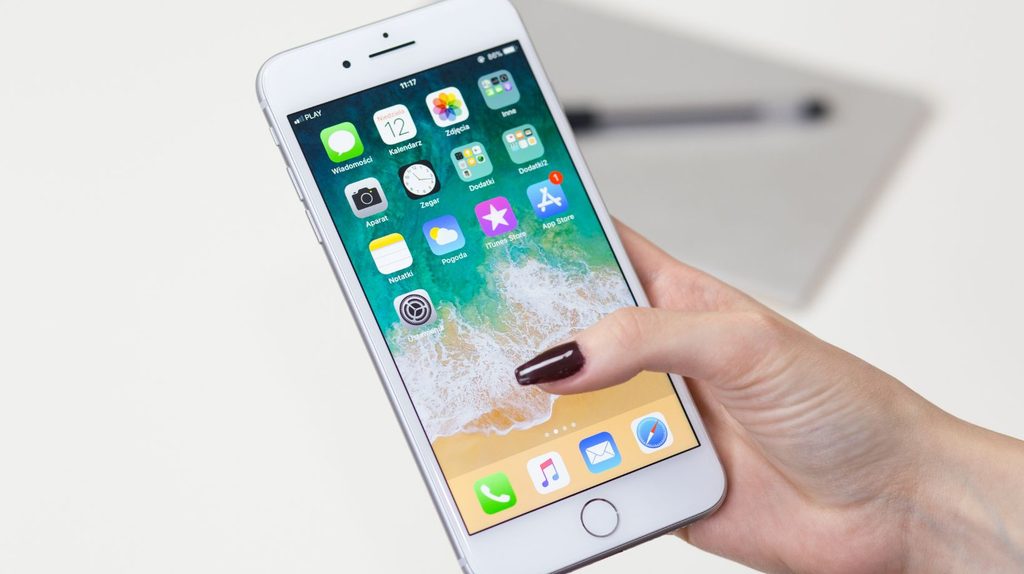
Your phone buzzed four times during the last boss fight. None of it mattered. A flash sale you didn’t ask about, a “your friend is online” nudge from an app you deleted months ago, and two copies of the same push notification because the developer apparently couldn’t decide which one to send.
This is the real cost of modern Android gaming. Not the game itself. The thirty apps fighting for your attention around it. Permissions pile up quietly. You tap “allow” once during setup and forget it ever happened. Eighteen months later your notification shade looks like a classifieds section, and your battery dies four hours earlier than it should.
Here’s the good news. Most of this is fixable in under twenty minutes, and you don’t need to wipe every app and start fresh. You need a system for figuring out which permissions are actually earning their keep, and which ones have been quietly spamming you since last spring.
Which Apps Spam You the Most
Open your notification history (Settings > Notifications > Notification history on most modern Android builds) and look at the last 48 hours. I’ll bet money on what you’ll find near the top.
Betting and casino apps are, by a wide margin, the worst offenders on the platform. Not because the games are bad. Because the retention playbook for real-money apps leans harder on urgency than almost any other category in the Play Store. “Your bonus expires in 2 hours.” “Someone just won $4,200 near you.” “Come back, we miss you.” A 2025 industry piece from PocketGamer.biz laid out exactly why this pattern drives players to uninstall rather than engage. The behavior hasn’t changed much since.
Here’s the part worth separating out, though. The spam isn’t really coming from the operators themselves most of the time. It’s coming from third-party ad networks and shady affiliate funnels that bolt themselves onto betting apps because the vertical converts well. A legitimate, regulated operator doesn’t need to carpet-bomb your lock screen, because the offer is already good enough to stand on its own. If you’re looking at Canadian casino bonus codes, the reputable ones are published openly on licensed operator sites and verified affiliate pages, not shoved into a push notification at 11 p.m. On a Tuesday. That distinction matters more right now, too. The Supreme Court of Canada just agreed to hear a case (argued 7 October 2026) over whether provincial lottery corporations’ online gaming and sports betting operations hold up under the Criminal Code. The gap between a properly licensed Canadian platform and an opportunistic offshore one is getting more scrutiny, not less.
If you gamble on your phone at all, this is a quick gut check. Does the deal require you to act in the next ten minutes, or is it sitting there whenever you decide to look? Urgency is the tell. Transparent offers don’t need a countdown timer.
A quick note, since this section touches real-money apps: gambling involves risk. Only wager what you can afford to lose, and if it stops feeling optional, GamCare and BeGambleAware both offer free support.
Auditing Permissions Without Losing Your Mind
Don’t go app by app. That takes forever and you’ll give up after six. Instead, go to Settings > Apps > Notifications (the exact path varies slightly by manufacturer, but every Android 13+ build has some version of this). You’ll get a single list, sorted by how often each app has pinged you in the last week.
Anything sending more than ten notifications a day that isn’t a messaging app gets reviewed. Not deleted. Reviewed.
Three categories to check, fast:
- Marketing/promo channels. Most apps split notifications into channels now (order updates vs. Promotions, for instance). You can often kill the promo channel specifically and keep the useful one. Look for a small arrow or “customize” link next to the app’s toggle.
- Background data permissions. An app that can’t send push notifications without network access in the background is burning battery even when you’re not using it. Turn off “unrestricted” background data for anything that isn’t core to your day.
- Lock screen visibility. Some apps default to showing full notification content on your lock screen. For anything finance or betting related, set that to “hide sensitive content” regardless of whether you keep the notifications on at all.
This is genuinely about discipline, not tools. A good ad-blocker helps. It can’t fix an app you’ve granted five separate permissions to over three different updates, though.
Ad-Blockers Are About to Get Weaker, Not Stronger
Here’s the inconvenient timing. Chrome’s rollout of Manifest V3 is actively stripping out the capabilities that strong ad-blockers like uBlock Origin relied on. The shift is already live in current Chrome builds as of this month. Full ad-blocking inside the browser is shrinking as an option.
What that means practically: you rely more on app-level and system-level controls, less on browser extensions. DNS-based blockers (NextDNS, AdGuard DNS) still work regardless of what Chrome does, because they filter at the network layer before anything reaches your browser or app. A study published in Discover Sustainability found that mobile gamers consistently rate in-app ads among their top reasons for app abandonment. That tells you advertisers have every incentive to keep pushing harder even as the tooling to block them shifts under them.
If you haven’t set up a system-wide DNS filter yet, that’s the single highest-value move available right now. It catches ad traffic across every app on the phone, not just inside Chrome.
What Actually Works, In Order
Start with the notification history audit. Five minutes, costs nothing. You’ll immediately spot the three or four apps responsible for 80% of the noise.
Then set up a DNS-level blocker. It’s the one step that survives whatever Chrome decides to do with extension permissions next.
Last, go back through app permissions every few months. Not every week. Every few months, when you notice a new app sneaking promo notifications past you again.
None of this requires rooting your phone or installing anything sketchy. A practical roundup from Tech Advisor covers several legitimate blocking methods if you want a second opinion on tools. It lines up with what’s worked for me across two different phones and about four years of testing this stuff.
For more on how ad-blocking is shifting across gaming news sites specifically, TurboGeek’s piece on smarter ad-blockers reshaping how gaming news gets read is worth a look. It covers the browser side of this in more depth than I have room for here.
Frequently Asked Questions
Why do gaming apps send so many push notifications? Retention metrics reward it. Apps are scored partly on daily active users, and a well-timed notification brings lapsed players back. The incentive isn’t aligned with your attention span, so the volume keeps climbing unless you actively manage it.
Will turning off notifications break anything important in my games? Usually not. Most games separate “gameplay” notifications (energy refilled, event starting) from marketing ones. Turn off the promo channel first and see if anything you actually care about goes missing. It usually doesn’t.
Does a VPN help block ads on Android? Some VPNs include DNS-level ad filtering as a bundled feature, which does help. A standard VPN with no filtering built in won’t touch ad traffic at all, so check the feature list before assuming it’s covered.
Is it safe to disable background data for gaming apps? Mostly yes. You might delay a push notification about a timed event, but you won’t lose save progress or break the app. Apps that need genuine real-time sync (multiplayer titles) are the exception worth leaving alone.
Getting Your Phone Back Under Your Control
None of this is a one-time fix. New apps arrive, old ones update their permission requests, and the notification arms race keeps going whether you’re paying attention or not. The baseline stays simple, though: audit what’s actually pinging you, filter at the network level where you can, and treat urgency-driven pop-ups (gaming, betting, or otherwise) as a red flag rather than an invitation.
Twenty minutes now saves you a much messier cleanup in six months. Your lock screen will thank you.